Scheduled email reports
Set a schedule
- In a site’s settings, open Scheduled email report, switch it on, and choose how often (every week, every 2 weeks, every month or every 3 months) and the day and time. Each email compares its period with the one just before it.
- Under Send to, choose who gets it: everyone who can view the site (follows its access list automatically), specific WordPress users, and other email addresses. Administrators only receive it if you add them.
- Save, then use Send a test report to at the bottom of the page: yourself, one person on the list, or everyone.
Settings → Report recipients and schedules lists every site’s next send, and Settings → Email sender sets the default schedule for new sites.
Each person gets their own email, so recipients never see each other’s addresses. A report can go to up to 50 unique addresses.
Anyone you email sees the numbers
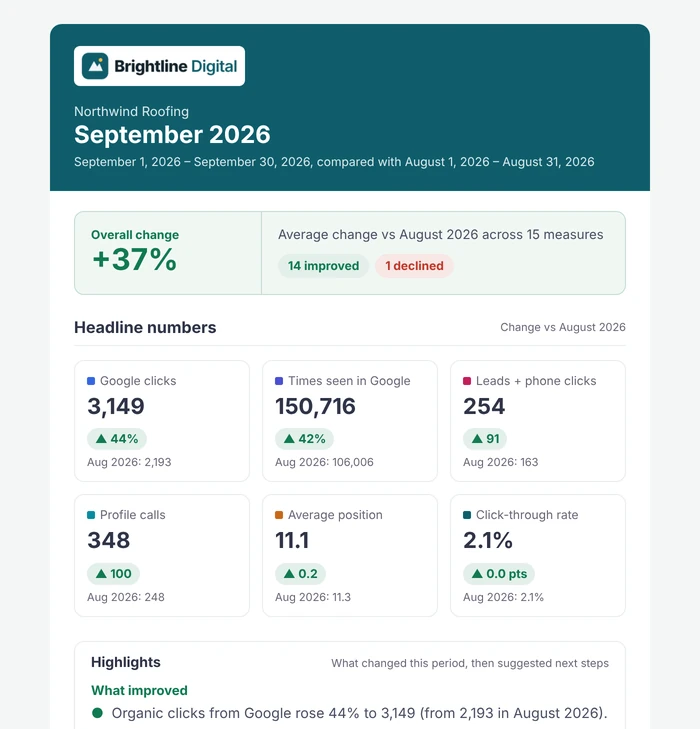
Emails contain headline numbers and a link that opens the report for exactly that period (login needed). Only add people who should see that site.
Review before sending
In review mode the report is prepared on schedule, you get an email, and nothing goes out until you approve it under Email deliveries. There you can preview the email, download the PDF, edit the highlights and add notes for that period.
Data checks
Before sending, every source is checked. If something couldn’t load (an expired sign-in, denied access, a Google outage) the report is held and administrators are told why, or, if you chose “Send it anyway, with a clear warning”, it goes out with a short note about what’s missing. Missing data is never shown as zero.
Delivery history
Email deliveries lists every email per recipient. “Accepted by mail system” means your mail server took it; it can’t confirm the inbox. Failed emails are retried twice automatically, and you can resend them; people who already got it aren’t emailed again.
On-time delivery
Scheduling uses WP-Cron, which only runs when the site has visits, so on a quiet site a report can go out late (never twice). For on-time delivery, add a server cron job that calls wp-cron.php every 15 minutes and set DISABLE_WP_CRON to true in wp-config.php. TurtleReport → Settings shows when background jobs last ran and the exact command. Install an SMTP plugin (or use your host’s mail service) so emails don’t land in spam.