Client reports
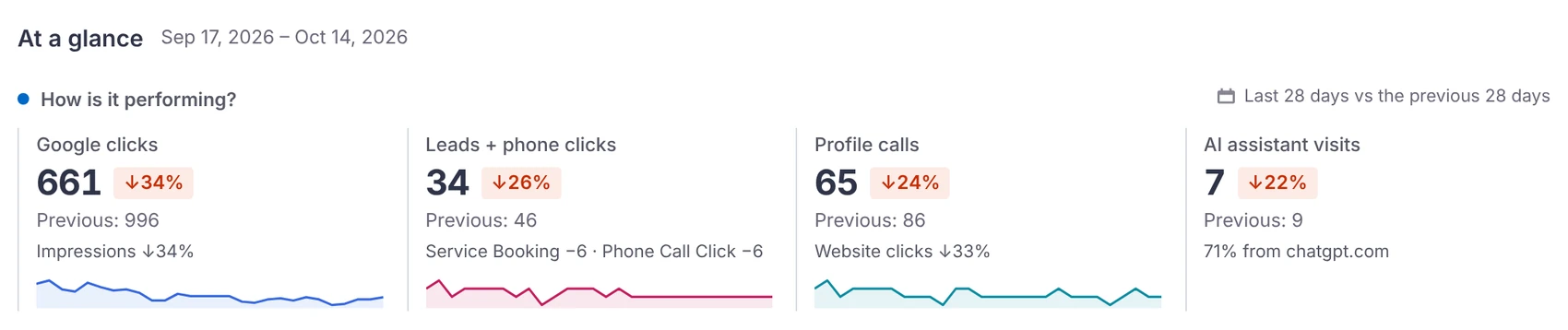
Each site has its own report under TurtleReport → Reports. Every number is shown beside the period before.
What a report covers
- Search Console: clicks, impressions, CTR and average position, with pages, search queries, ranking changes, opportunities, countries and devices.
- GA4 conversions grouped under labels you choose, plus the landing pages that brought those leads or sales.
- AI assistant traffic, such as visits from ChatGPT and Perplexity, and website traffic metrics.
- Business Profile (optional): calls, website clicks, direction requests and views.
Disabled sections are not fetched. A genuine zero is a valid result; sign-in, permission and connection failures are shown as errors, never as zero.
Periods and comparisons
Pick the last 7 days, 28 days, 3 months or 6 months. Each is compared with the period of the same length just before it, as in Search Console. Custom range… picks any dates up to a year long.
Pages and keywords
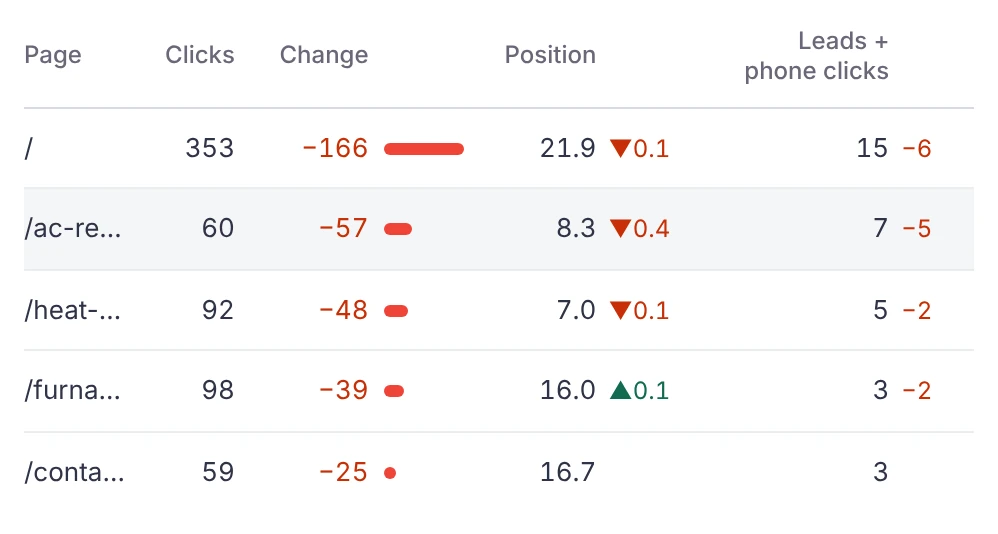
The Pages section ranks pages by change in Google clicks, with leads beside them. The Keywords section shows rankings and the biggest movers.
Segments
- In a site’s settings, open Segments (filters) and add presets such as Brand searches, Commercial intent, Informational or Blog pages, or build your own.
- For Brand, type your brand and product names (and common misspellings), separated by commas.
- On the report, choose a segment or its opposite (“Not Brand” = non-brand searches) from the Segment menu. A Segments card compares them side by side.
Query segments filter Search Console only (GA4 has no search queries). Page segments also filter GA4 conversions and traffic by landing page. Google hides rare queries, so a query segment plus its opposite adds up to slightly less than the total.
Fresh numbers
Reports are saved for up to three hours when they include recent days, and up to a day for older periods. Use Refresh data on the report for fresh numbers.